Integrations
Content can be sent to external tools once the minutes are approved. You choose what to send and check it before it goes.
Tools you can connect
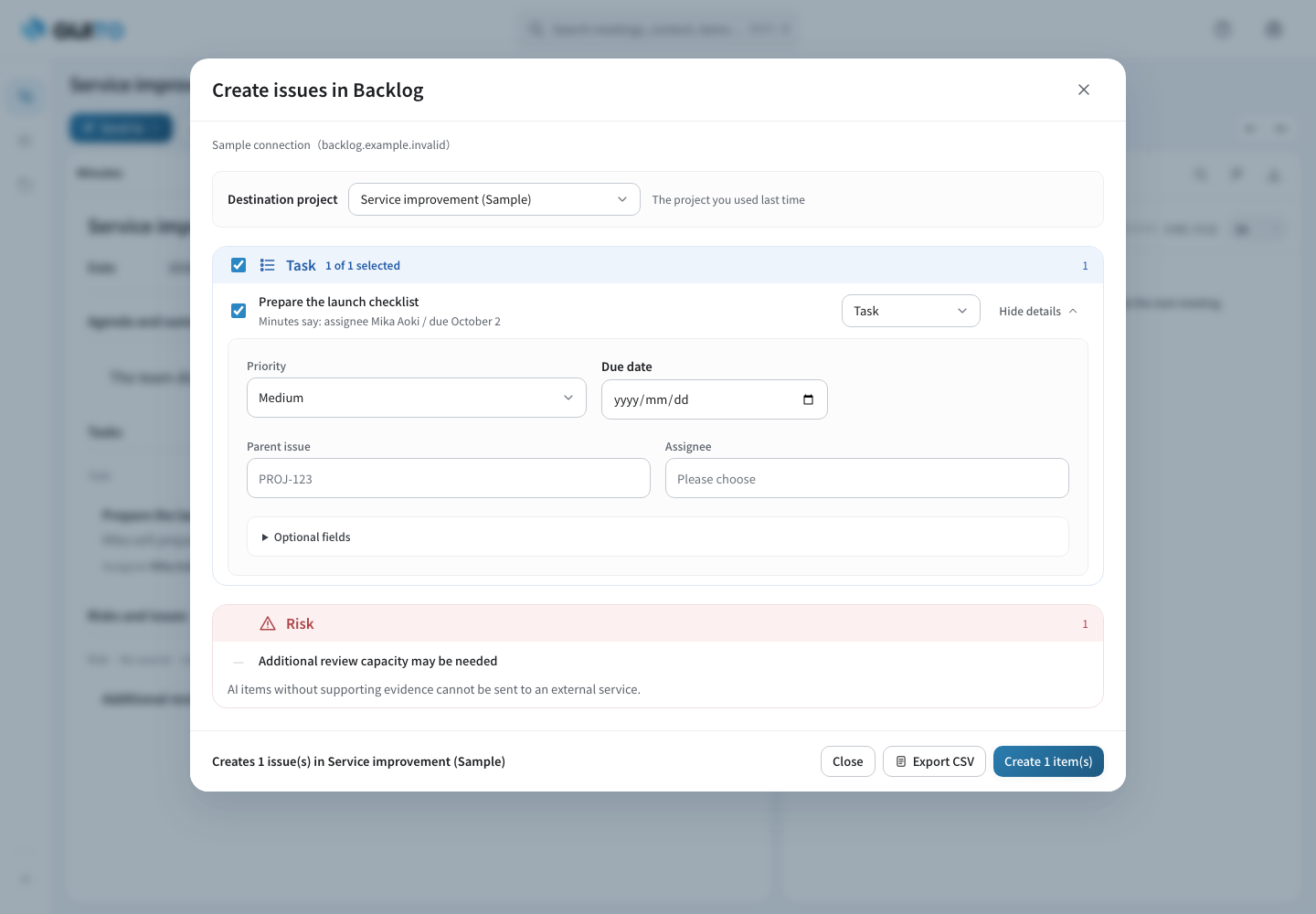
Backlog
Registers approved items as Backlog issues.
Jira
Registers approved items as Jira work items.
Slack
Posts the approved minutes as text to the channel you choose. You pick the channel when you send, and the next time the last channel is already selected. You see what will be posted before it goes. The post is made in the name of the person who connected the account.
Google Drive
Saves the approved minutes as a file in the folder you choose, as Word, Markdown or a Google Doc. You pick the folder when you save, and the next time the last folder is already selected. If you choose, the transcript and the recording are saved with it.
Notion
Saves the approved minutes as a new page in the database you choose, or under the page you choose. If you choose, the transcript is saved with it.
Zoho CRM
Keeps the approved minutes as a note on the contact, lead or deal you choose. The transcript is not sent.
Dropbox
Saves the approved minutes as a file in the folder you choose, as Word or Markdown. If you choose, the transcript and the recording are saved with it.
How sending to Backlog and Jira works
- Each member connects with their own account.
- Approval alone sends nothing. You choose the items and the project, check the content, then create.
- What is sent: the title and content of the item, the owner and due date as written in the minutes, and the text of the source remarks.
- The assignee and due date in the destination are chosen by the person sending. They are never set automatically from the minutes.
- AI-generated items without a source cannot be sent.
- The result of each send and a link to the created issue stay in the history. A safeguard keeps one item from creating the same issue twice.
- The progress of an issue in the destination is not shown in GIJITO.
Without connecting an account: CSV
Export items to CSV and bring them in with Backlog bulk registration or Jira CSV import. In this case nothing is sent from GIJITO to the outside.
What works without any integration
Save as Word or Markdown
Download approved minutes as Word (.docx) or Markdown (.md).
Copy as text
Choose approved items and copy them as text you can paste into chat or email.
Keep track for yourself in My item list
Save the items you want to come back to, and add your own due date, memo and a done mark. Only you can see them.
Other tools
Connections to other tools can be added to fit your company’s needs. Please ask us about the details.
First, tell us about the meetings you would like to try.
Apply for a trial